Change each game's graphics settings
Quality, resolution, display mode, FPS limit, VSync… from GameHub, without opening the game.
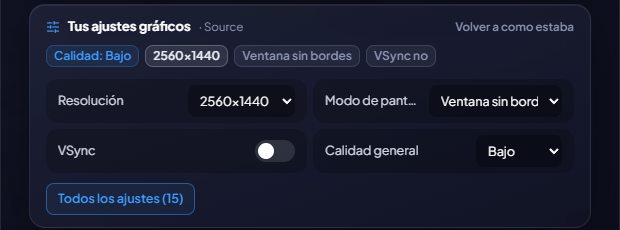
GameHub reads the graphics settings each game saves and shows them on its page. In games that save their settings in a known format, you can also change them: the main ones (overall quality, resolution, display mode, FPS limit and VSync) are right there, and “All settings” opens a window with all of them, grouped and with a search box.
It understands games made with Unreal Engine (Borderlands 3 and 4, Hogwarts Legacy, THE FINALS…), Unreal Engine 3 (Rocket League, Killing Floor 2…), Unity and Source (Counter-Strike 2…), plus GTA V (Legacy and Enhanced), Cyberpunk 2077 and Far Cry 2 to 6.
Before the first change it keeps a copy of how everything was: with “Restore original” you leave it as it was. With the game open it won't let you change anything (the game would overwrite it on exit) and it respects read-only files.
Launch options: save each game’s own (like -dx11 or -novid), turn each one on or off with a click and reorder them. They’re added when you open the game from GameHub (on Steam, together with the ones you’ve set there); in every game, even if GameHub can’t read its settings. Epic, Ubisoft and EA don’t allow passing them: it lets you know. You can also give each game its own priority and affinity (which CPU cores it uses), applied while it’s running.
Also The Witcher 3 and Back 4 Blood, and in Cyberpunk 2077 you can choose which screen to play on.
Settings have their own tab on the game page: display settings on top and quality and effects below, as many as fit, with «All settings» close at hand.
How to use it
- On the game's page, the “Graphics settings” tab.
- Change whatever you want and click “Save”: you'll notice it the next time you open the game.
Give it a try?
⬇ Direct download 🛍️ Download from Microsoft StoreWindows 10 and 11 (64-bit) · Free · Updates itself