Your saves, always safe
SaveHub is the part of GameHub that looks after your saved games: it backs up each save when you close the game and lets you get it back in one click, on your PC or from your own cloud.
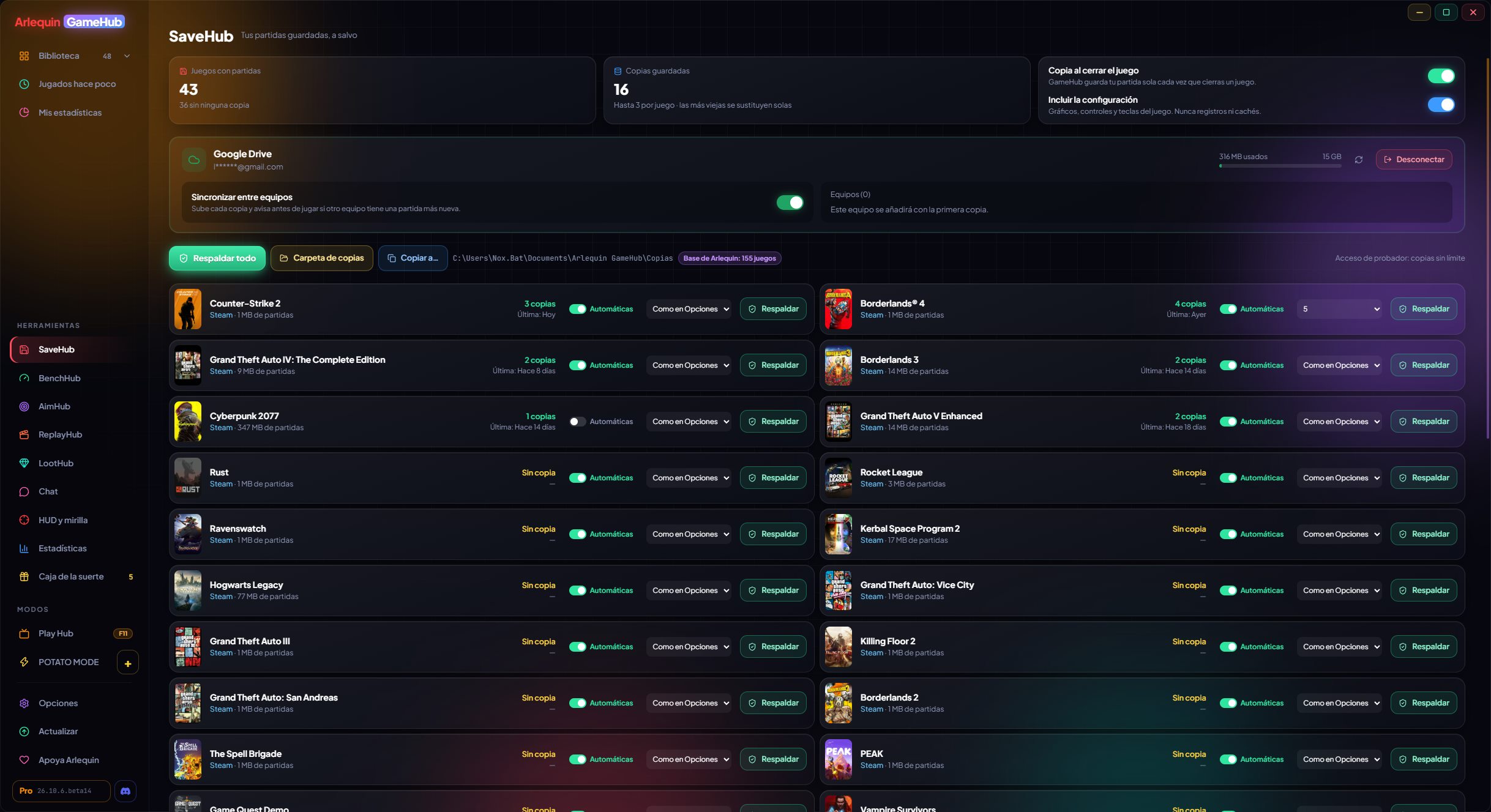
Automatic backups
Every time you close a game, GameHub backs up your save. No need to remember.
When you close a game, GameHub makes a compressed backup of its saves in the folder you choose (ideally on another drive or in a folder you already keep in the cloud). It can also back up the game's settings (graphics, controls and keys) and the saves some games keep in the Windows registry.
It never backs up logs or caches (for example, the shader caches many games generate): only what matters.
For games you leave open for hours (MMOs, survival…), with ArlequinPro it can also back up during the session every 15, 30 or 60 minutes.
Each game has its own "Automatic" switch and each save folder its own "Copy" switch. If a game's saves go over 250 MB, it warns you and you decide whether to back them up. And you can pin a backup so it's never deleted.
Direct download only It also backs up the saves and save states of your EmuHub console games and, with ArlequinPro, makes automatic save states.
How to use it
- It works on its own: there's nothing to set up.
- “Back up now” on the game's page makes a backup right away.
- In SaveHub, “Back up everything” backs up all your games.
Protection against damaged saves
If a backup comes out wrong, the good ones aren't lost.
If an automatic backup comes out much smaller than the previous one (for example, because the game closed badly or the save got corrupted), GameHub doesn't delete the good backups you already had: it keeps them as well as the new one.
It keeps several backups per game (3 with ArlequinFree; with ArlequinPro, 5 by default and up to 10): when you go over the limit, the oldest one is deleted.
How to use it
- It's on by default. You can change it in Options → SaveHub.
- GameHub notices if the game closed badly (freeze or crash): that backup is marked, the previous one is pinned so you can go back and, when you close the game, it asks if your save is fine; if not, it restores the previous one.
- SaveHub warns you about games you played this month without a backup of your latest save, with «Back up now».
Restore and take your backups with you
Go back to any backup in one click, or take them to a USB stick.
On each game's page you see its backups (when they were made and why: when closing the game, by hand…) and you can restore any of them. Before restoring, GameHub keeps what you have now, in case you get it wrong.
With “Copy to…” you take all your backups, the latest one of each game, the ones of games without a launcher or the ones of a specific game to another folder or to a USB stick.
If something fails halfway through a restore, GameHub undoes it and leaves your saves as they were.
Before restoring GameHub checks that the backup is complete: if it is damaged, nothing is touched.
How to use it
- Game page → Saved games → Restore.
- SaveHub → “Copy to…”.
Save slots
Several saves in games that only let you have one. With ArlequinPro.
Some games have a single save: if you want to start over, or let someone else play on your PC, you lose yours. With save slots you have up to 10 saves per game and switch between them in one click.
A new slot can start from scratch or as a copy of the save you're using. When switching, GameHub first stores the current save in its slot, checks it's fine and, if anything fails, leaves everything as it was. Your game settings don't change.
With your cloud connected, slots are stored there too and you have them on all your PCs.
How to use it
- Game page → Saved games → Save slots.
- With the game closed: click “Slot 2” and choose how it starts.
Your saves in your own cloud
Connect your Google Drive, OneDrive or Dropbox and take your saves to another PC.
Each backup is uploaded to a GameHub folder in your cloud: the rest of your files are left alone. When you bring a backup to another PC, GameHub adapts it to that PC even if your Windows user has a different name or your games are on another drive.
With ArlequinFree, your backups are uploaded to your cloud from 1 PC (if you change PCs, you can move to the new one once every 30 days) and from any PC you can see what's in the cloud and restore a backup by hand. With ArlequinPro, your saves sync on their own across all your PCs and GameHub warns you if another one has a newer save.
The cloud is yours: Arlequin doesn't keep your saves on any server of its own. You sign in on each service's official page, and GameHub never sees your password.
How to use it
- In SaveHub, click Google Drive, OneDrive or Dropbox and sign in.
- From then on, every backup is uploaded on its own.
- Two PCs uploading at the same time no longer overwrite each other, and if the cloud is full or the session has expired it tells you clearly.
Knows where each game saves
And what it doesn't know, it learns while you play.
Each game keeps its saves somewhere different (Documents, AppData, the game folder, the registry…). GameHub knows from what the stores themselves keep on your PC (for example, Steam's cloud rules) and from the community database.
If it doesn't know, it watches which files the game writes while you play and learns the save folder. It also detects folders shared by several games (like Call of Duty's) so saves don't get mixed up. And you can always add a folder by hand.
It finds more saves by the game's engine (Unity, Unreal, Ren'Py, RPG Maker, GameMaker, Godot) and by store (GOG cloud, Xbox / Game Pass and Ubisoft Connect), understands games that open from their own launcher (like GTA IV) and doesn't mistake other programs' folders, or Rockstar's shared folders, for saves. The game page tells you where each folder comes from.
If a game has no known path, it looks for its folder by its name and by its install folder name in the usual places (My Games, Documents, Saved Games and AppData, also inside the publisher's folder), along with its settings. It doesn't take other programs' folders or folders that only have crash reports or caches.
How to use it
- Game page → Saved games → “Add folder”.
Your way
Everything in SaveHub is set up in Options → SaveHub.
- Backup folder (and open it).
- Backup when closing the game, and include the settings.
- Protection against damaged saves.
- Backups kept per game, and backup while playing.
- Compression: fast, normal or maximum (takes less space, takes a bit longer).
- “Never back up”: files or folders you don't want in your backups (for example
*.mp4orScreenshots).
How to use it
- Options → SaveHub.
Your saves, safe from today
⬇ Direct download 🛍️ Download from Microsoft StoreWindows 10 and 11 (64-bit) · Free · Updates itself