What you need, on top of the game
A HUD with your FPS, temperatures and power draw, and a crosshair made to measure. Without getting inside the game: no trouble with anti-cheats.
HUD: your data while you play
FPS, CPU, GPU, memory and time in a corner of the game, the way you want.
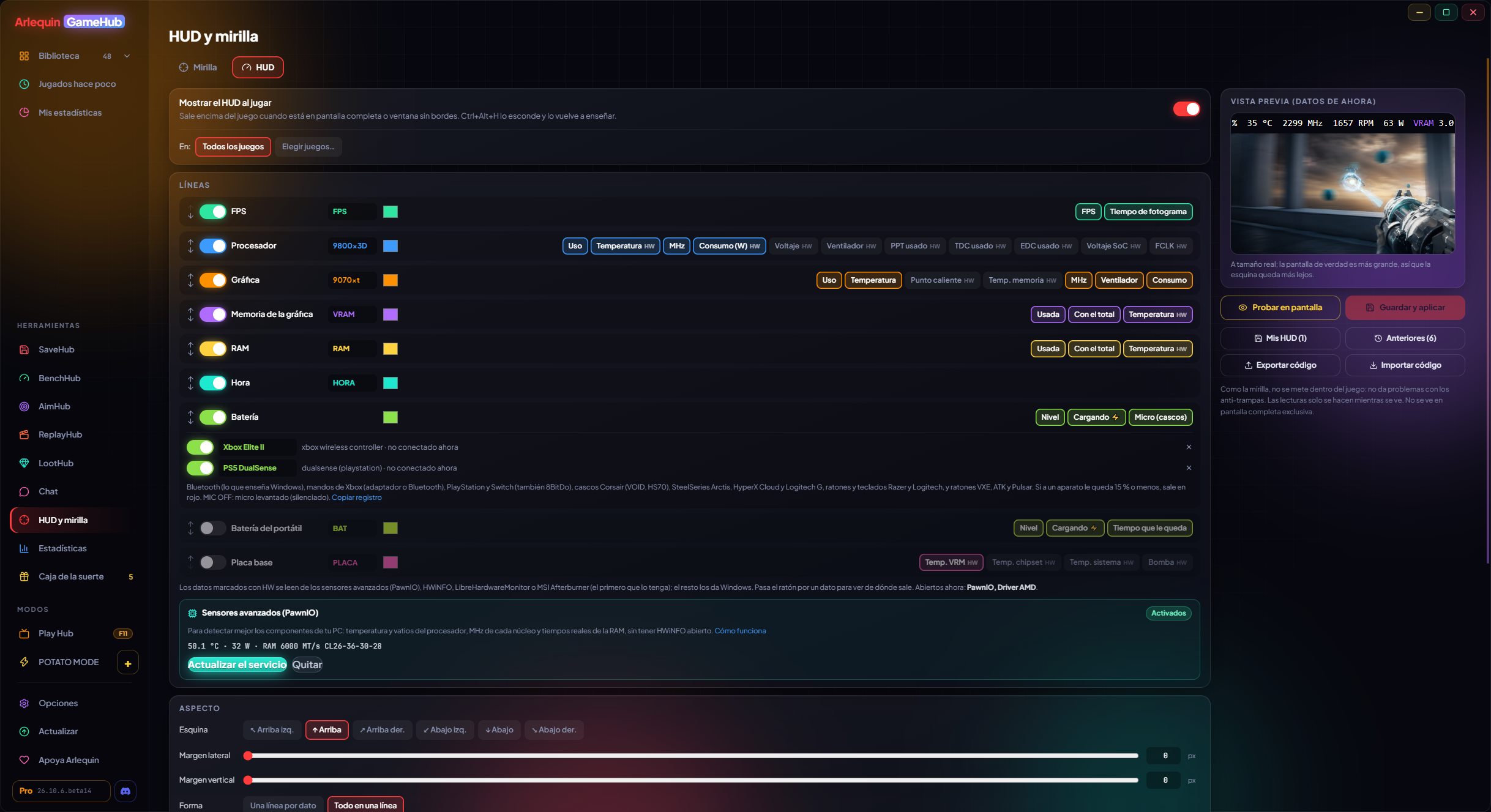
Each line is a group (FPS, GPU, CPU, graphics memory, RAM and time) with its label and colour, and you choose which data each one shows. You order them however you like and turn them off separately.
You choose the corner, the margin, one line per item or everything on one line, the font size and typeface, bold, the colours, the background, the text outline so you can read it without a background, and how often it updates (from 0.25 to 2 seconds).
It can also show the battery of your wireless devices, one line per device (⚡ while charging, red when low): PlayStation, Xbox, Switch and 8BitDo controllers; Corsair, Razer, SteelSeries, HyperX and Logitech headsets; Logitech mice and keyboards, and whatever you have on Bluetooth.
While you edit it you see a preview with your PC's real data at that moment. It only reads data while it's visible: with the HUD hidden it uses nothing.
The HUD can also go at the bottom center, it has a line with your laptop's battery (and whether it's charging) and the graphics memory line can show its temperature. It reads the battery of more and more devices, like Razer BlackShark V3 Pro headsets or VXE, ATK and Pulsar mice with a receiver.
If you stream with Discord, OBS or Streamlabs, the HUD shows your game’s FPS and not those of their preview, and if its file gets damaged you no longer lose your saved HUDs and crosshairs.
The HUD shows the FPS of the game you have open even if it isn’t in front, it can stay on screen at all times (also on the desktop) and, with several screens, you choose which one.
How to use it
- Tools → HUD and crosshair → HUD.
- “Try on screen” shows it right away, on top of everything.
- It appears on its own when you play; Ctrl+Alt+H hides it and shows it again.
What it shows
Windows gives the basics; temperatures and power draw come from your sensor program.
Without installing anything (the same data Task Manager uses): FPS and frame time, CPU usage and real MHz, GPU usage, MHz, temperature and fan, graphics memory and RAM used (with the total, if you want).
With a sensor program open: CPU temperature and power draw, RAM temperature, GPU hot spot and memory temperature, and its power draw in watts (on AMD, the TBP, the whole board's). Windows doesn't provide this data without a special driver: GameHub reads it from the program you already use. In the direct download you can also turn on "Advanced sensors" (optional, with a Windows permission) to get it without opening another program; in the Microsoft Store version, use the sensor program.
If you have several open, each value comes from the first one that has it, and if one closes, it carries on with the next without you noticing. In the editor, hovering over a value shows which program it comes from. If there's none, those values show as “—” (or are hidden, if you choose).
How to use it
- HWiNFO: tick “Shared Memory Support” in its Settings (in the free version it switches off every 12 hours).
- LibreHardwareMonitor: Options → Remote Web Server → Run.
- MSI Afterburner: just keep it open (with RTSS, it also gives FPS).
Don't work
- HWMonitor: it doesn't share its data with other programs.
A crosshair made to measure
Centred by default and adjustable to a tenth of a pixel.
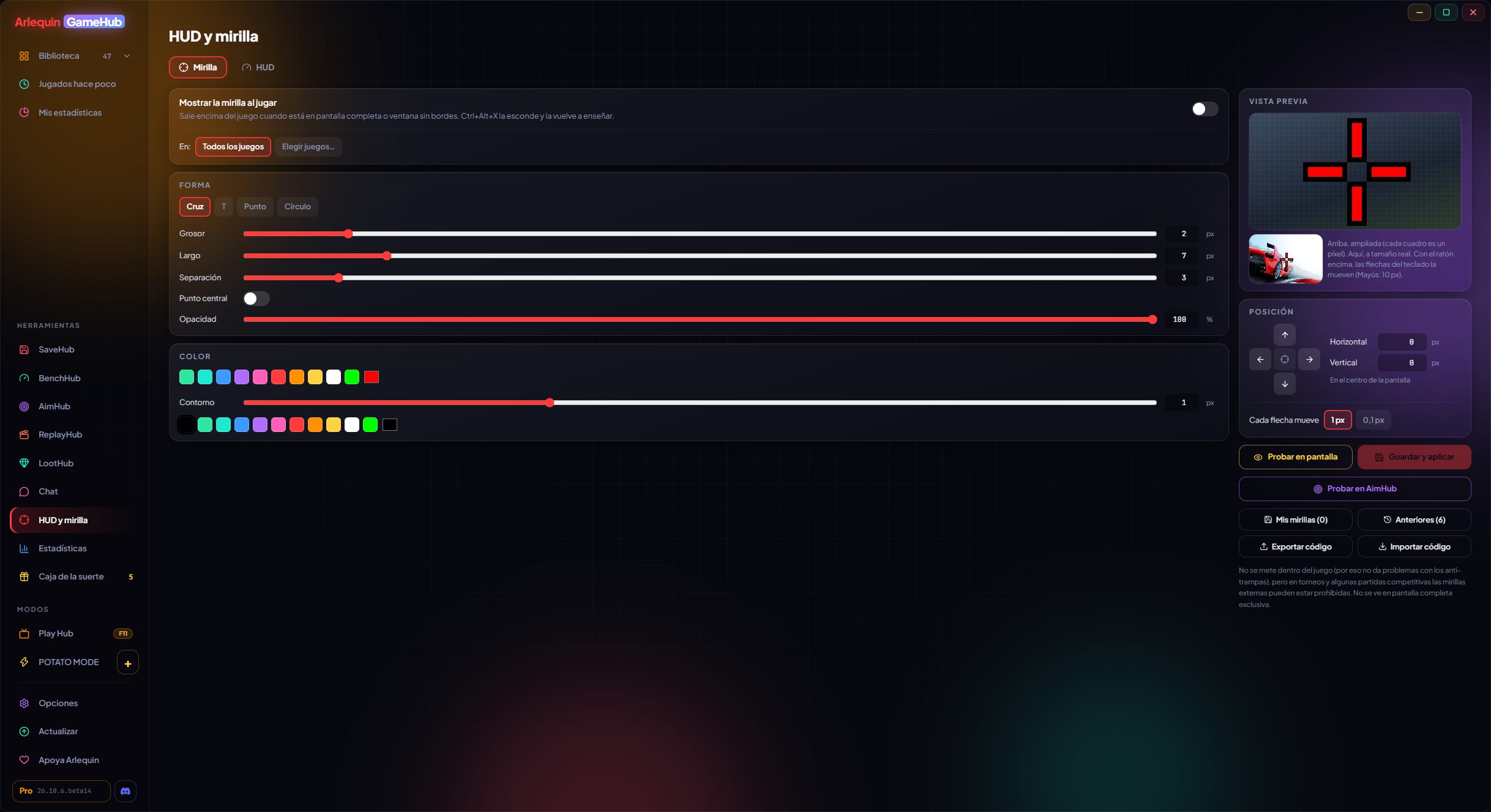
With its editor you choose the shape (cross, T, dot or circle), thickness, length, gap, radius, centre dot, colour, opacity and outline with its colour. You see it in a zoomed-in preview, where each square is a pixel, and another at real size.
It appears in the exact centre of the screen and you can move it pixel by pixel, or in steps of 0.1 pixels: with decimals it's spread across two pixels, like classic games did, to land on the exact spot (a little less sharp, because the screen has no half pixels).
Lots of people use one in normal matches, but in tournaments and some competitive matches external crosshairs may be banned: check the rules of what you play.
How to use it
- Tools → HUD and crosshair → Crosshair.
- On-screen or keyboard arrows to move it (Shift: 10 px).
- It appears on its own when you play; Ctrl+Alt+X hides it and shows it again.
Graphics card connector watchdog
Warns you before your graphics card's 16-pin connector burns.
Some graphics cards with a 16-pin connector (12VHPWR / 12V-2x6) have suffered burnt connectors because of bad contact. While you play, GameHub watches what your graphics card exposes through HWiNFO and, if something odd lasts a few seconds (not a single spike), it warns you with a Windows notification and a red line on top of the game.
- ASUS ROG Astral and ROG Matrix (RTX 4090, 5080, 5090): current on each pin. It warns if one is overloaded or if one carries nothing while the others do (no contact).
- Other NVIDIA RTX 40 and 50 cards with 16 pins: connector voltage. If it drops for a sustained time, there's bad contact or the cable is wearing out.
- Other cards (like the Sapphire NITRO+ RX 9070 XT PhantomLink): ready for when HWiNFO can read their connector sensors.
It doesn't shut down your PC or close your game: it tells you what's going on and what to do (save, close the game and check the cable is fully seated with no tight bends near the connector).
How to use it
- It works on its own with HWiNFO open (sharing its data).
- Graphics cards with 8-pin connectors don't need it.
Save, restore and share
Your HUDs and crosshairs, just as you left them.
Save your HUD or your crosshair with a name (“Competitive”, “Valorant green”…) and go back to them whenever you like. Every time you save a different one, the previous one stays in “Previous” (the last 20), just in case: you can see them, bring them back or delete them.
Choose whether they appear in all your games or only in the ones you pick: not every game is a shooter. And share them with a code (ARLQ-MIRA-… or ARLQ-HUD-…) so a friend can try them: creating the code is part of ArlequinPro, and loading it is free for everyone.
How to use it
- “My crosshairs” / “My HUDs” and “Previous” in the editor.
- “Export code” (ArlequinPro) and “Import code” (free).
- “Import code” also accepts CS2 and VALORANT crosshair codes, brings in the CS2 one from your PC, and “Test in AimHub” shows it over several backgrounds.
- «Copy for CS2 or VALORANT» (ArlequinPro) copies your crosshair to import it into the game.
Give it a try?
⬇ Direct download 🛍️ Download from Microsoft StoreWindows 10 and 11 (64-bit) · Free · Updates itself